
CarbConnect logo
CarbConnect logo
    • Welcome to CarbConnect
    • Welcome to the Gallery
    • Creating Your First Folder
    • Uploading Your First Image

    • Introducing the image modal
    • Change image information
    • Communicate with your colleges
    • Create an Annotation

    • Sharing and Connecting

    • How to use ZOI 1.0 Zone of Inhibition measurement
    • How to use BiTTE lite Microbial Analysis
    • How to use Nugent Score AI 1.0
    • How to use BM Smear AI 1.0
    • How to use ZOI Pro
    • How to use Pick Colony 1.0 - Colony Picking support

    • Getting Started with AI Studio

    • Managing Your Profile and Settings

    • Getting Started with Labeling Tool
    • Configuring Shape Builder and Labels
    • Managing Server Invitations
    • Starting a Labeling Project
    • Accessing Shared Labeling Projects

Getting Started with AI Studio

EN
​

Learn how to create an AI Studio project, add a dataset, train the model, locate the generated files, run test inference, and review the analysis screens.

Open AI Studio from the dashboard to view your projects, then click "Create Project" or "Create Your First Project" to start a new workflow.
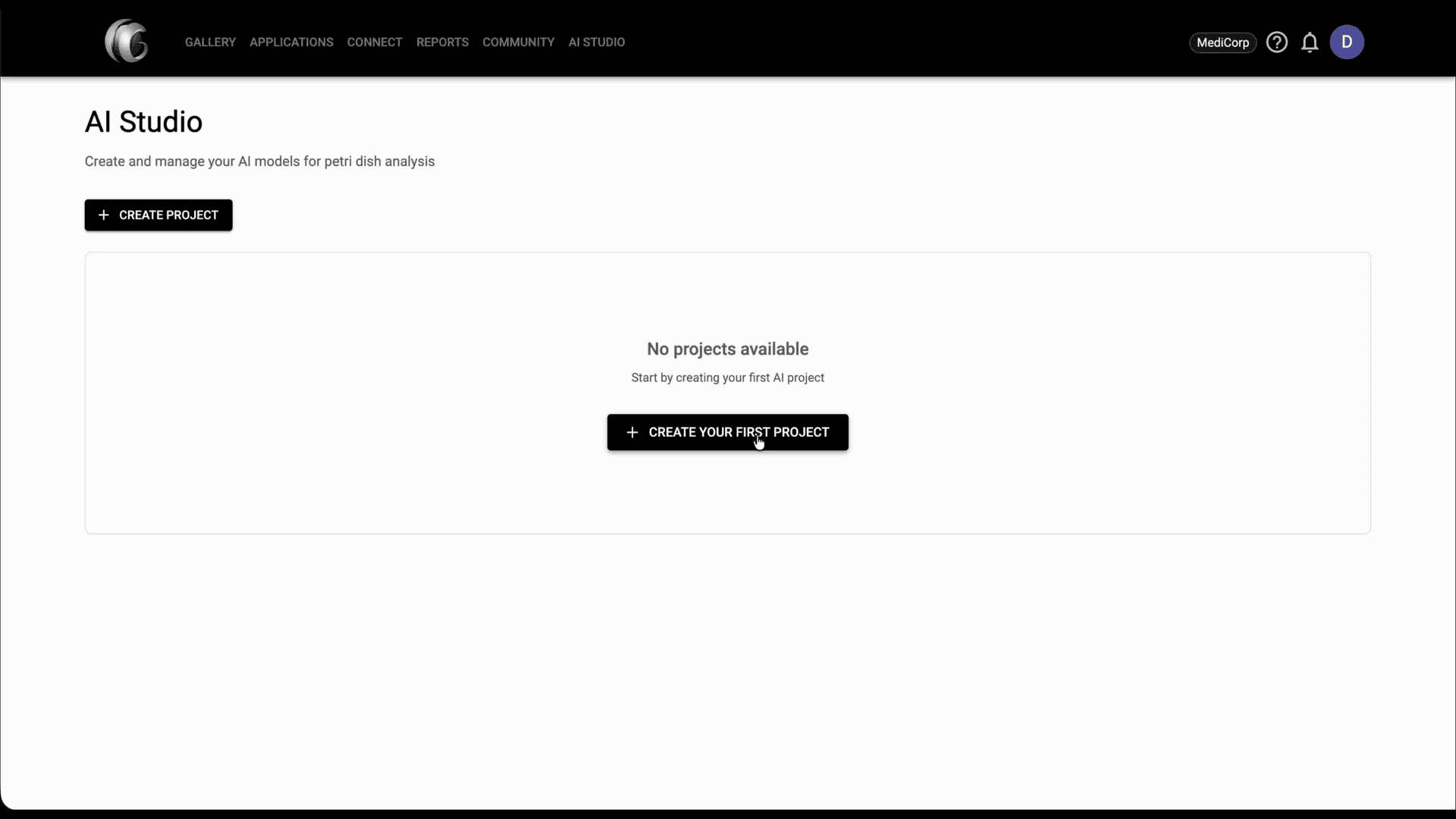
Step 1: Open AI Studio from the dashboard to view your projects, then click "Create Project" or "Create Your First Project" to start a new workflow.

In Project Settings, enter a project name, choose the model category, and select the training mode you want to use for the project.
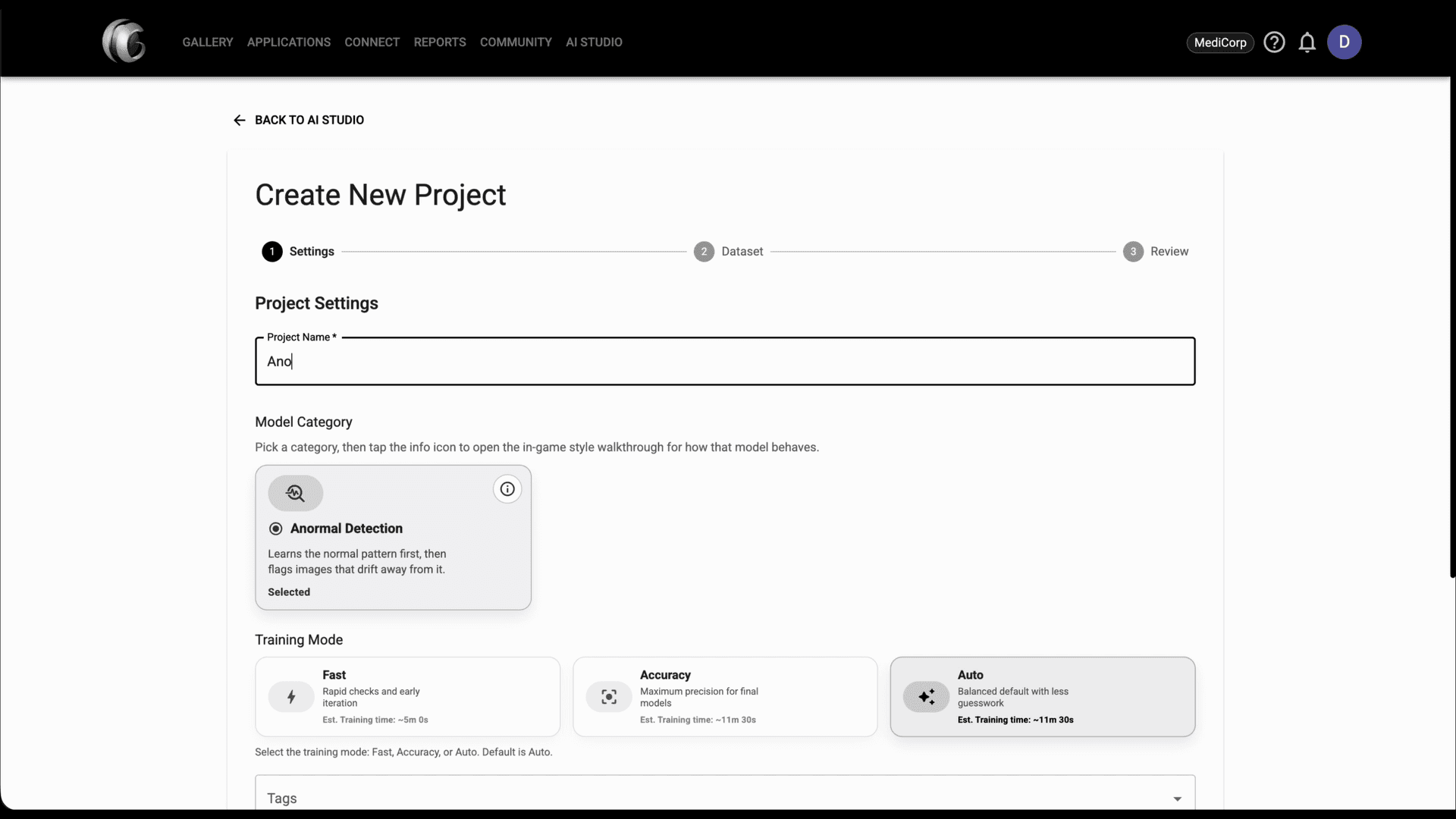
Step 2: In Project Settings, enter a project name, choose the model category, and select the training mode you want to use for the project.

Add tags if needed, then choose the project folder. You can select an existing folder or create a new one before moving on.
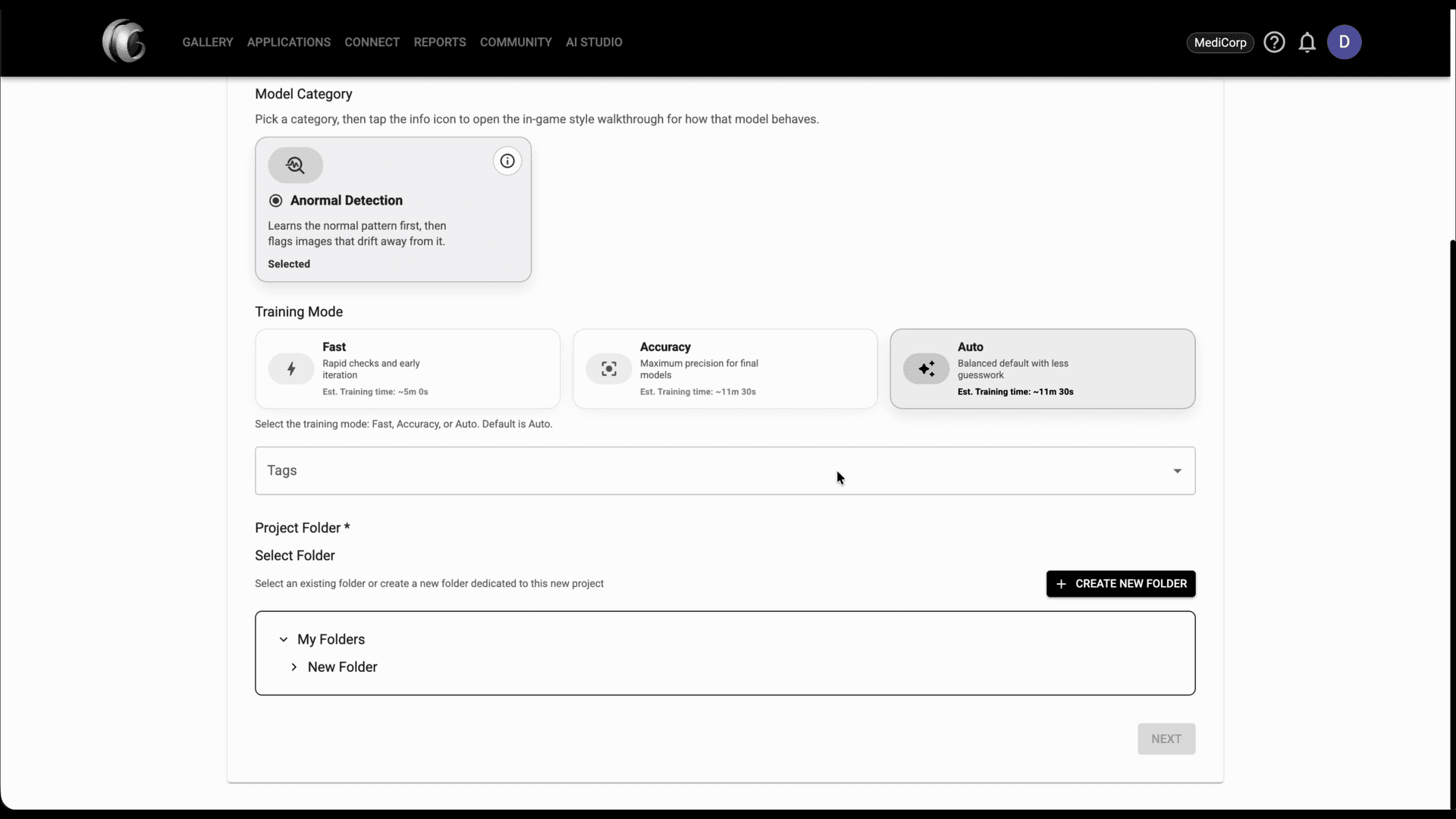
Step 3: Add tags if needed, then choose the project folder. You can select an existing folder or create a new one before moving on.

On the Dataset step, open the Upload tab, click 'Upload Images', and select the files you want to include until they appear in Current Dataset.
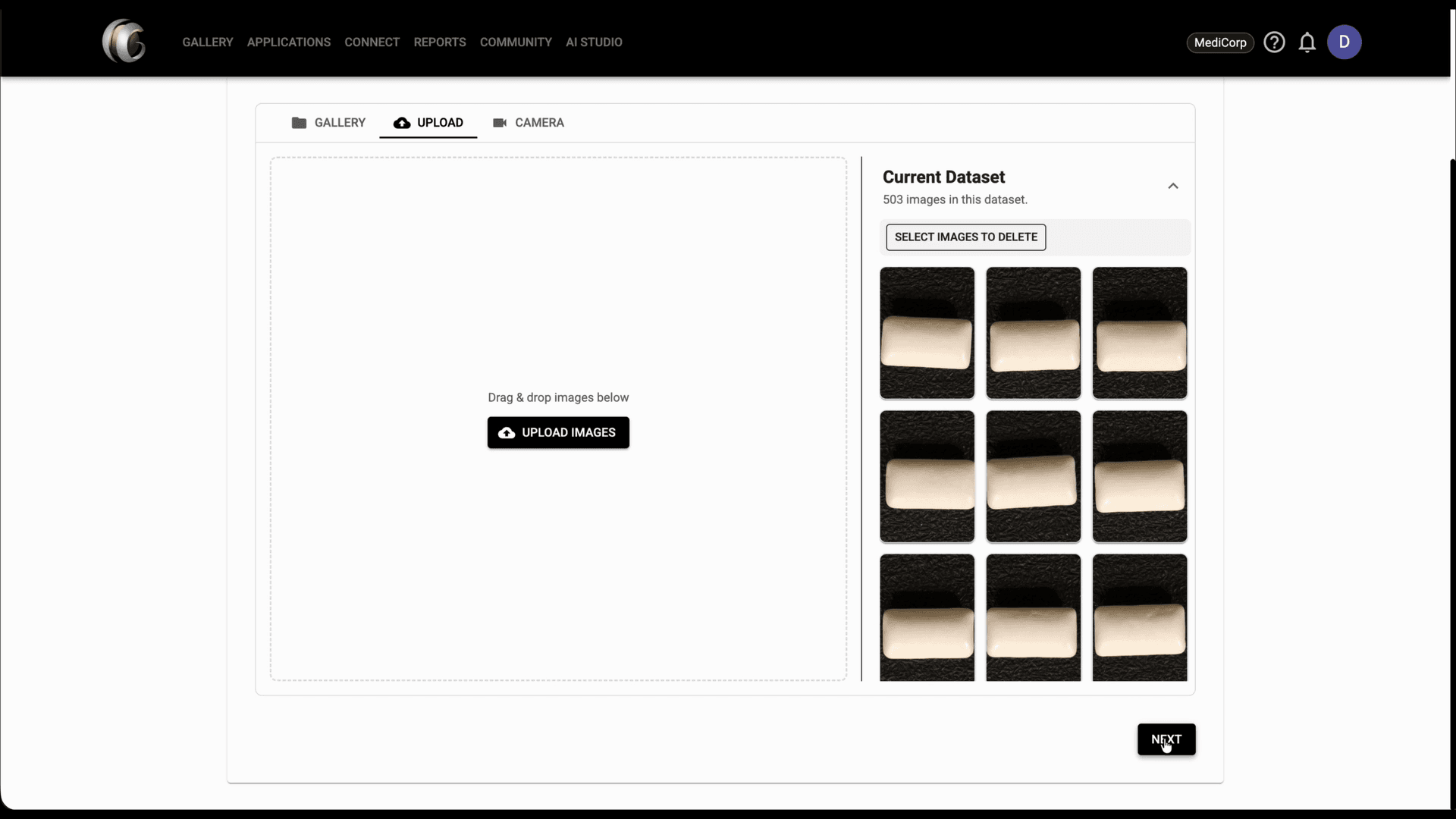
Step 4: On the Dataset step, open the Upload tab, click 'Upload Images', and select the files you want to include until they appear in Current Dataset.

Once the dataset is ready, click 'Next' and review the project name, category, mode, project folder, and dataset size in Review & Train.
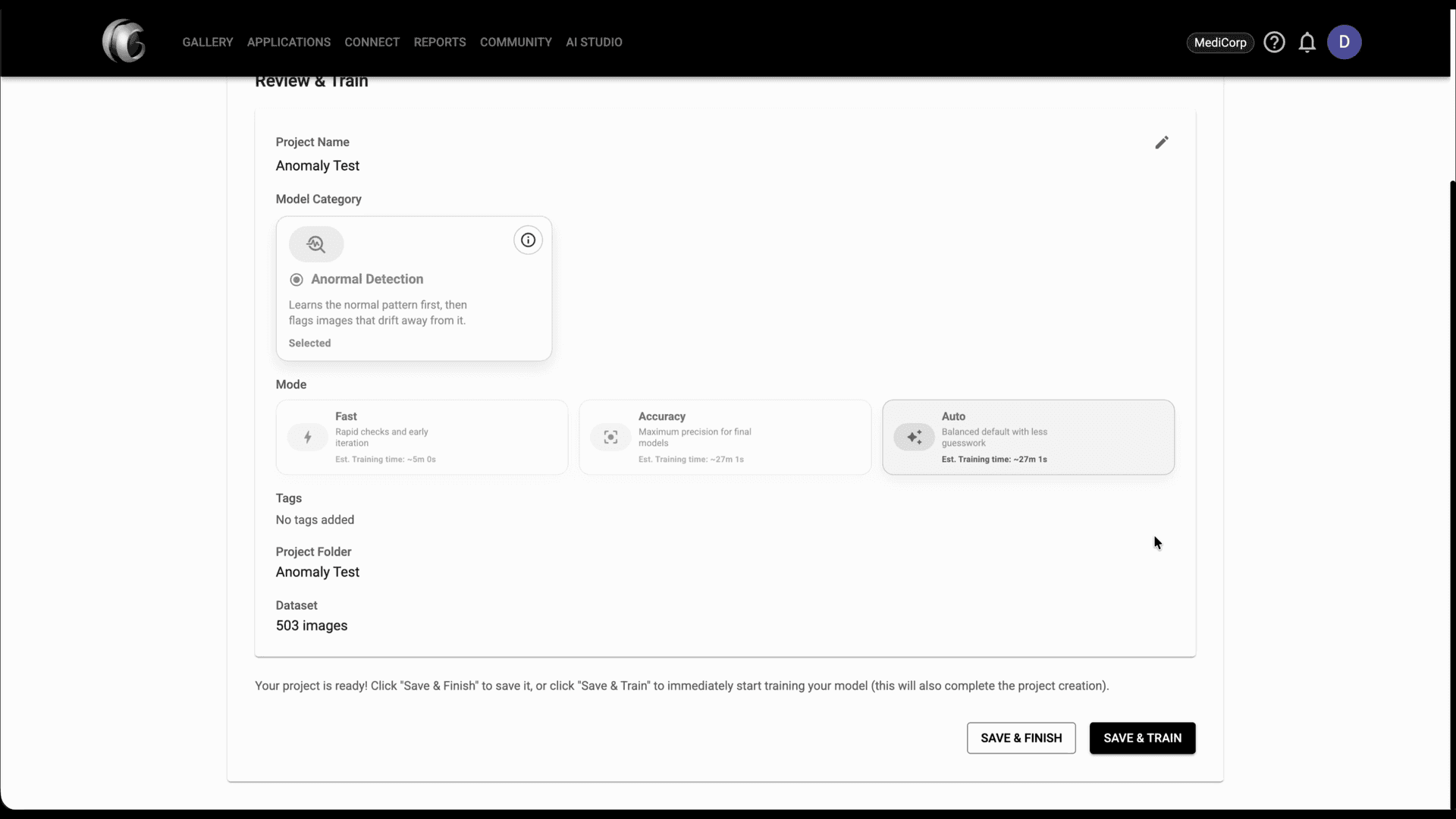
Step 5: Once the dataset is ready, click 'Next' and review the project name, category, mode, project folder, and dataset size in Review & Train.

Click 'Save & Train' and confirm 'Start' to launch the training job.
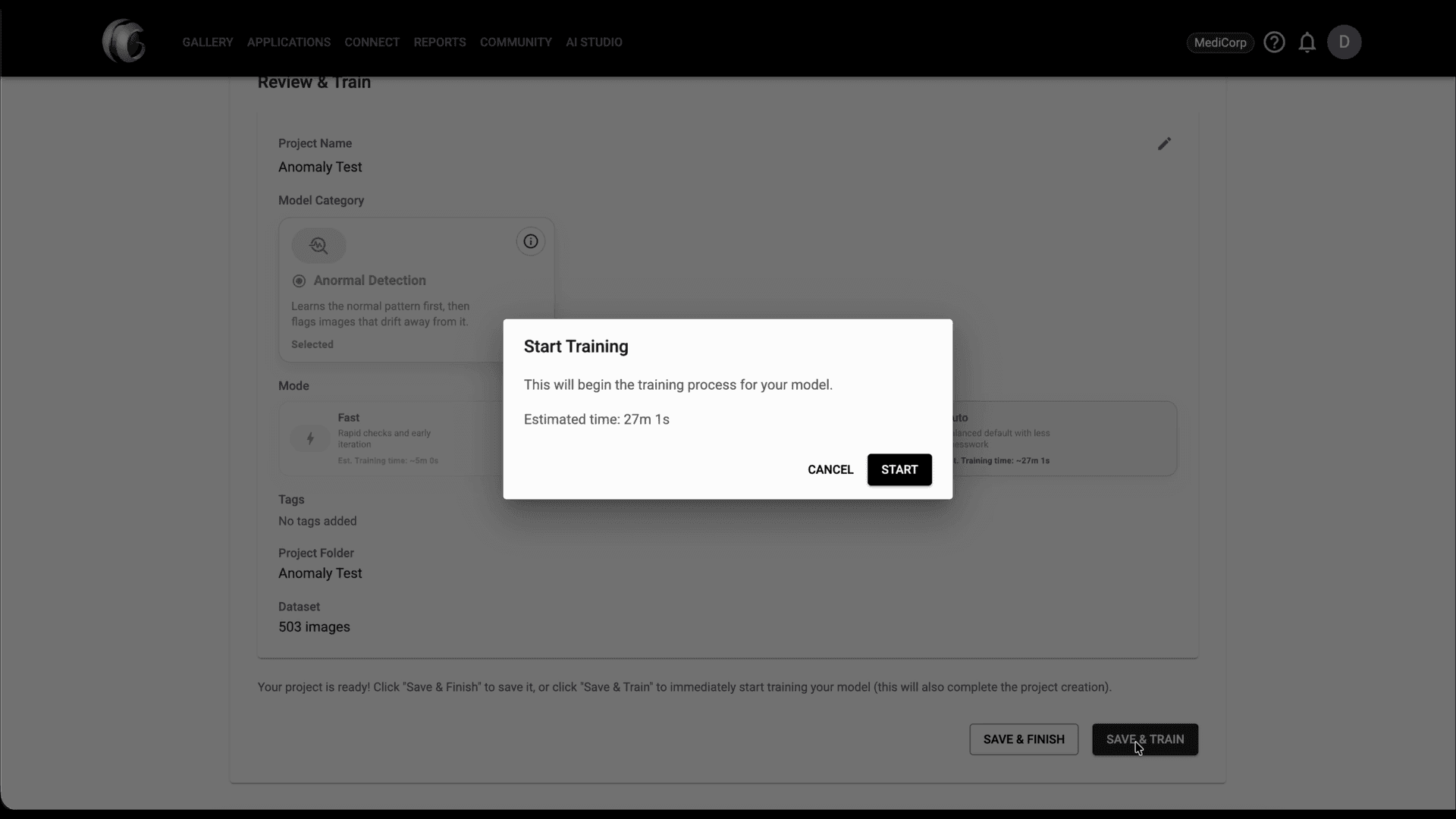
Step 6: Click 'Save & Train' and confirm 'Start' to launch the training job.

Open the Models tab to monitor the training status, then use 'Test Model' after a model shows as completed.
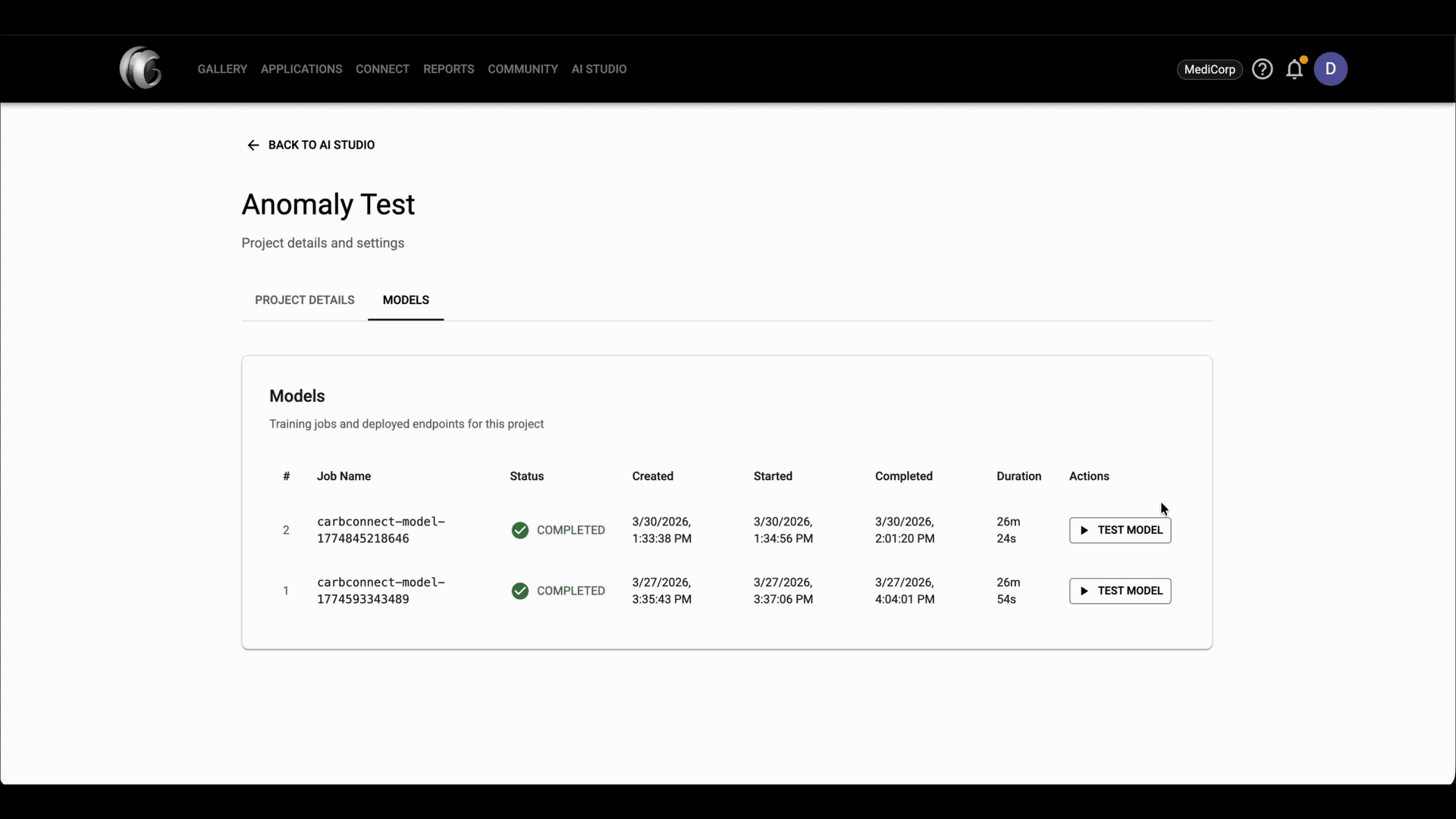
Step 7: Open the Models tab to monitor the training status, then use 'Test Model' after a model shows as completed.

Click 'Test Model', choose an image from the test folder, confirm the preview in the side panel, and then click 'Run Inference'.
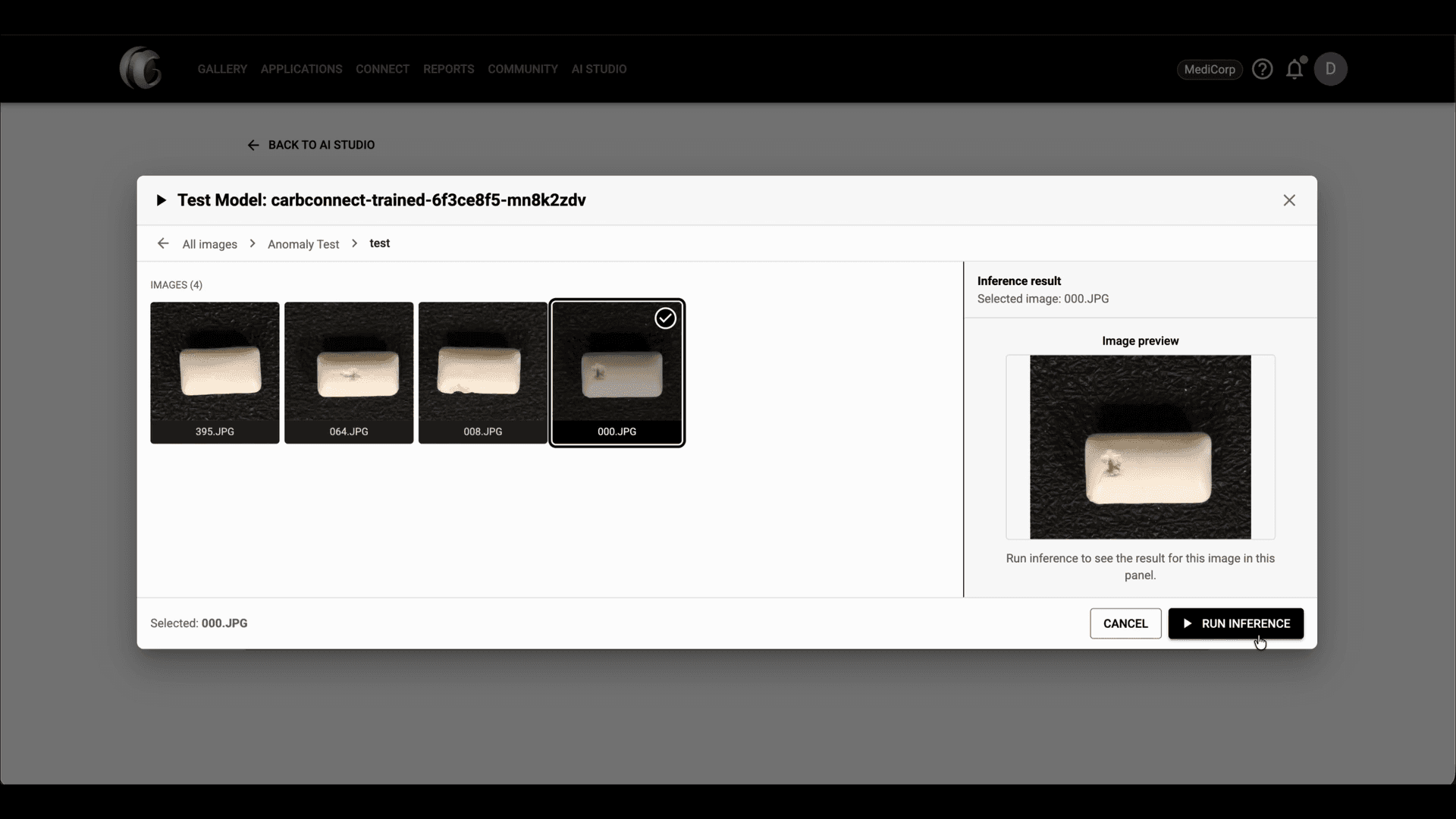
Step 8: Click 'Test Model', choose an image from the test folder, confirm the preview in the side panel, and then click 'Run Inference'.

In Project Details, scroll to the Project Folder section to confirm which folder is linked to the AI Studio project.
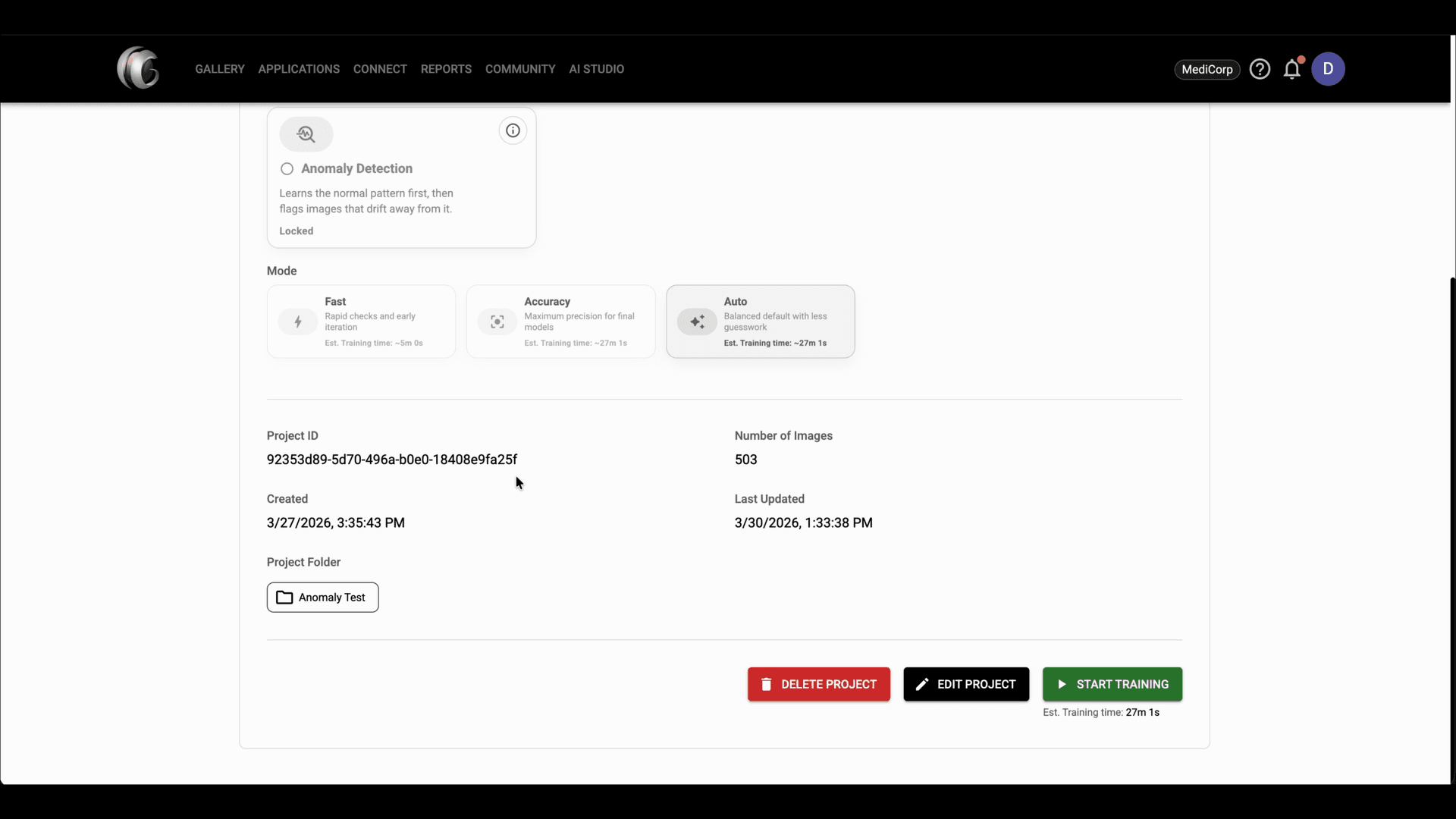
Step 9: In Project Details, scroll to the Project Folder section to confirm which folder is linked to the AI Studio project.

Open that project folder in Gallery to find the generated folders, including `dataset` and `output`.
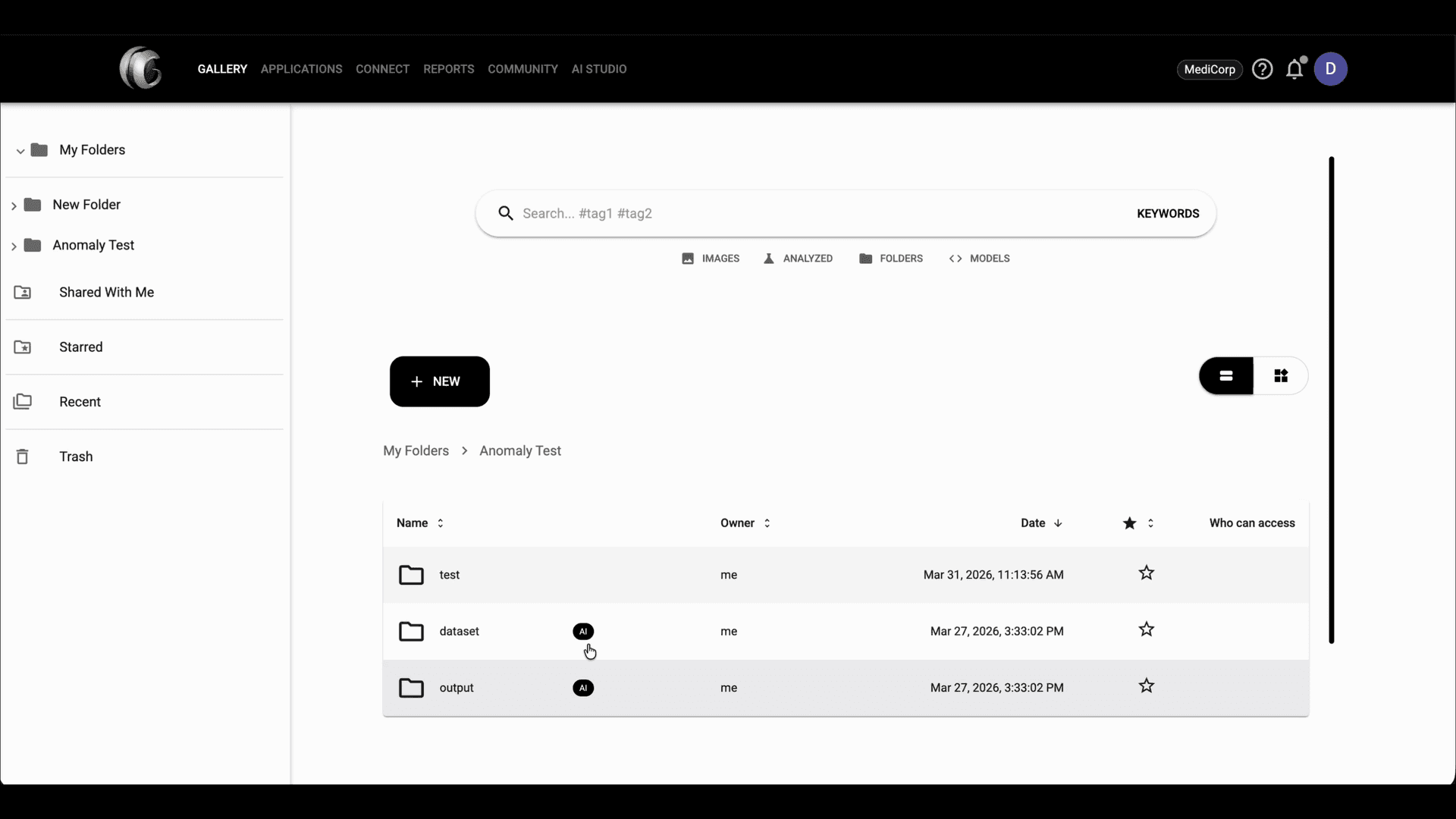
Step 10: Open that project folder in Gallery to find the generated folders, including `dataset` and `output`.

Open the output folder and select one of the generated model files saved by the project.
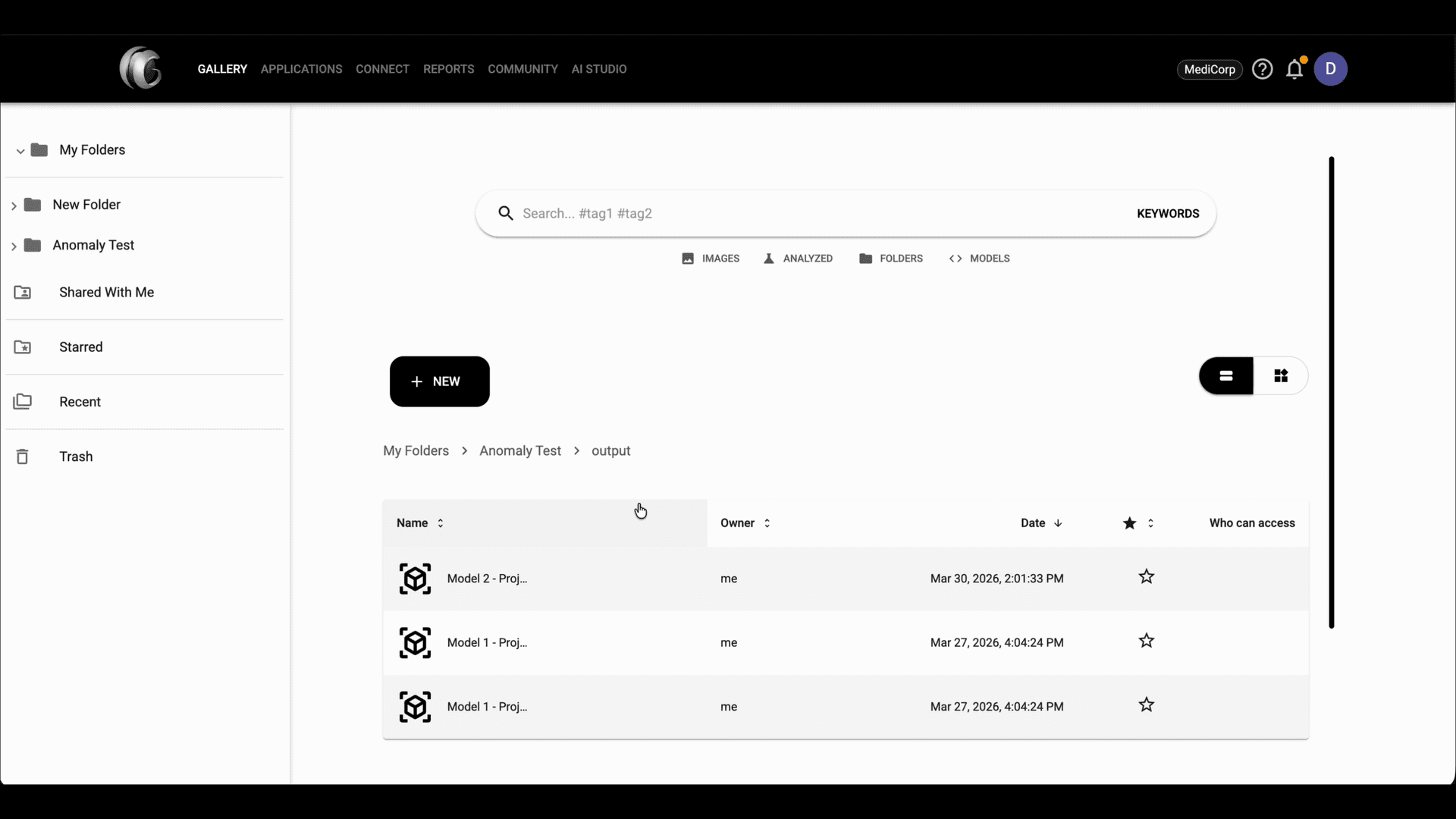
Step 11: Open the output folder and select one of the generated model files saved by the project.

In the model file view, open the Dataset Summary tab to confirm the linked dataset preview and total image count.
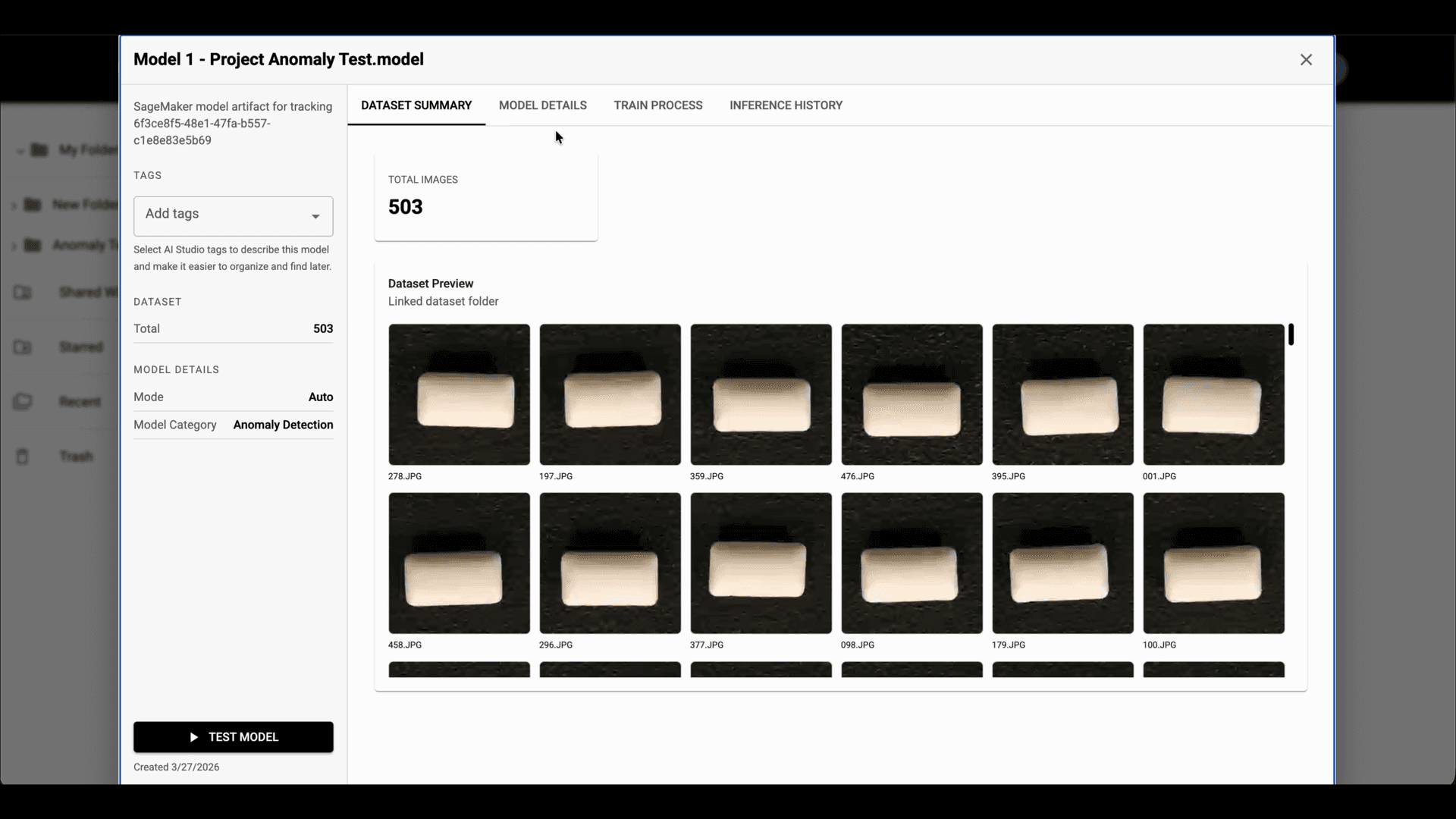
Step 12: In the model file view, open the Dataset Summary tab to confirm the linked dataset preview and total image count.

Use the Train Process tab to inspect the training status, mode, epochs, duration, and loss curve for the selected model.
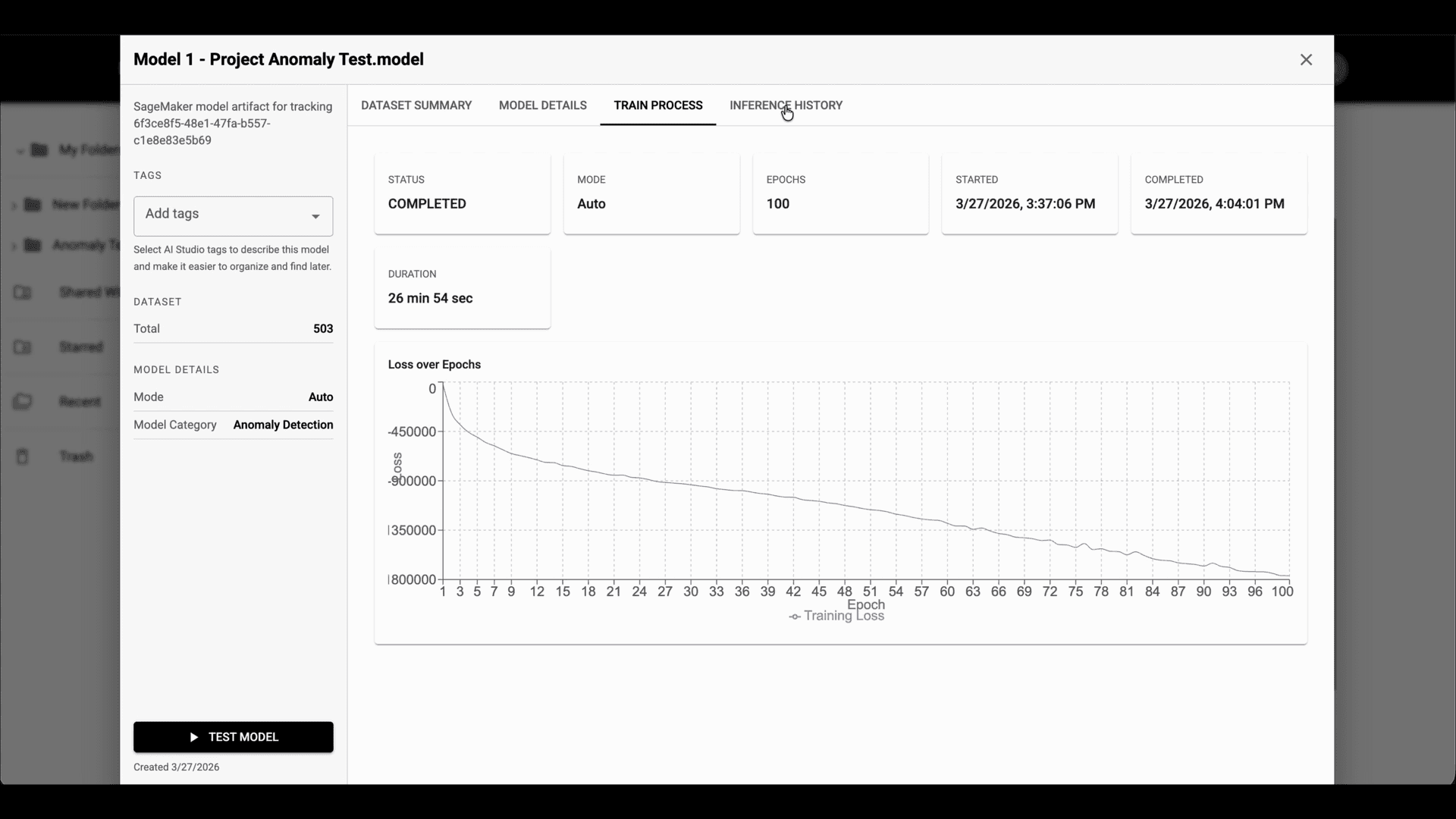
Step 13: Use the Train Process tab to inspect the training status, mode, epochs, duration, and loss curve for the selected model.

Open Inference History to review run statistics, score trends, anomaly rate, class distribution, and recent prediction cards.
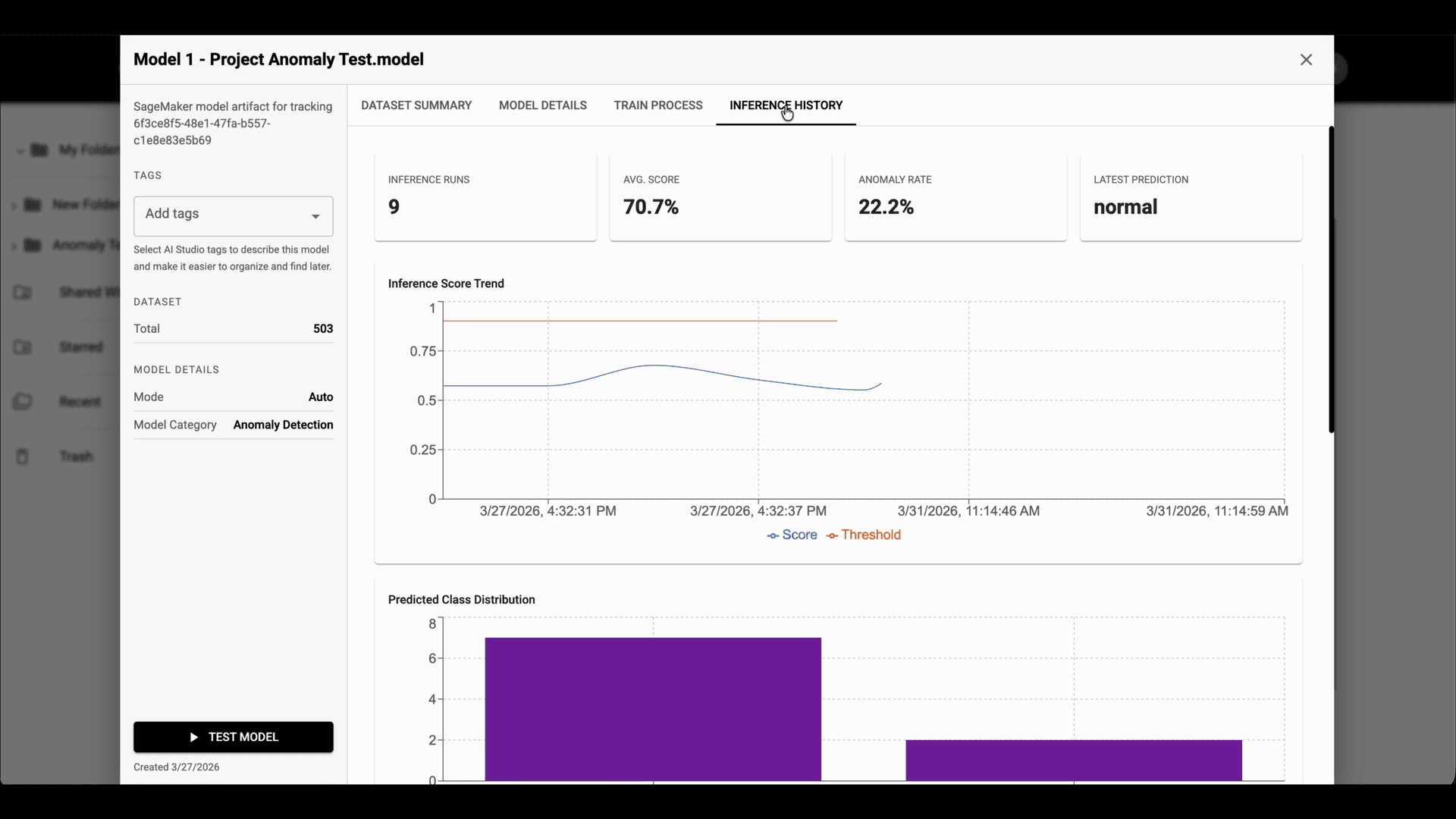
Step 14: Open Inference History to review run statistics, score trends, anomaly rate, class distribution, and recent prediction cards.
© CarbGeM Inc. All Rights Reserved.
About Us
Terms and Conditions
Privacy Policy