
CarbConnect logo
CarbConnect logo
    • Welcome to CarbConnect
    • Welcome to the Gallery
    • Creating Your First Folder
    • Uploading Your First Image

    • Introducing the image modal
    • Change image information
    • Communicate with your colleges
    • Create an Annotation

    • Sharing and Connecting

    • How to use ZOI 1.0 Zone of Inhibition measurement
    • How to use BiTTE lite Microbial Analysis
    • How to use Nugent Score AI 1.0
    • How to use BM Smear AI 1.0
    • How to use ZOI Pro

    • Managing Your Profile and Settings

    • Getting Started with Labeling Tool
    • Configuring Shape Builder and Labels
    • Managing Server Invitations
    • Starting a Labeling Project
    • Accessing Shared Labeling Projects

How to use ZOI 1.0 Zone of Inhibition measurement

EN
​

Explore the ZOI 1.0 Zone of Inhibition measurement Application to analyze images and datasets with AI-powered insights. Commonly used in an Antibiogram (agar diffusion, Kirby-Bauer) to evaluate bacterial sensitivity or resistance when testing different antibiotics via Petri dishes and Mueller-Hinton agar.

From the gallery, click on a ZOI image to open it. If you don't have any ZOI images, you can download sample ones.here

Click on the ZOI 1.0 Icon to open the application settings.
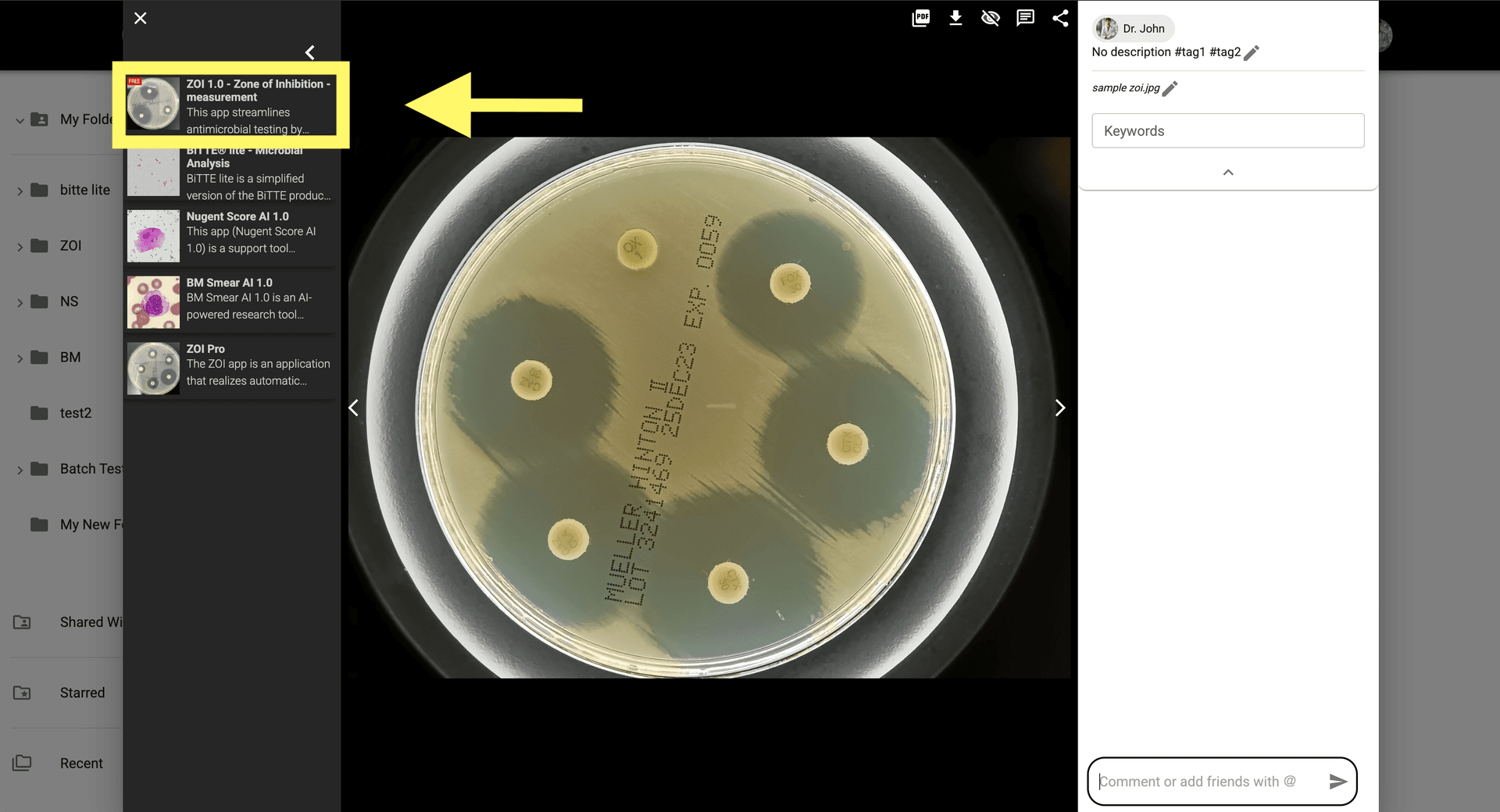
Step 2: Click on the ZOI 1.0 Icon to open the application settings.

Configure the analysis settings to measure zones of inhibition and detect bacterial growth inhibition.

Step 3: Configure the analysis settings to measure zones of inhibition and detect bacterial growth inhibition.

Click 'Analyze' to run the analysis and measure the ZOI against different antibiotic discs.
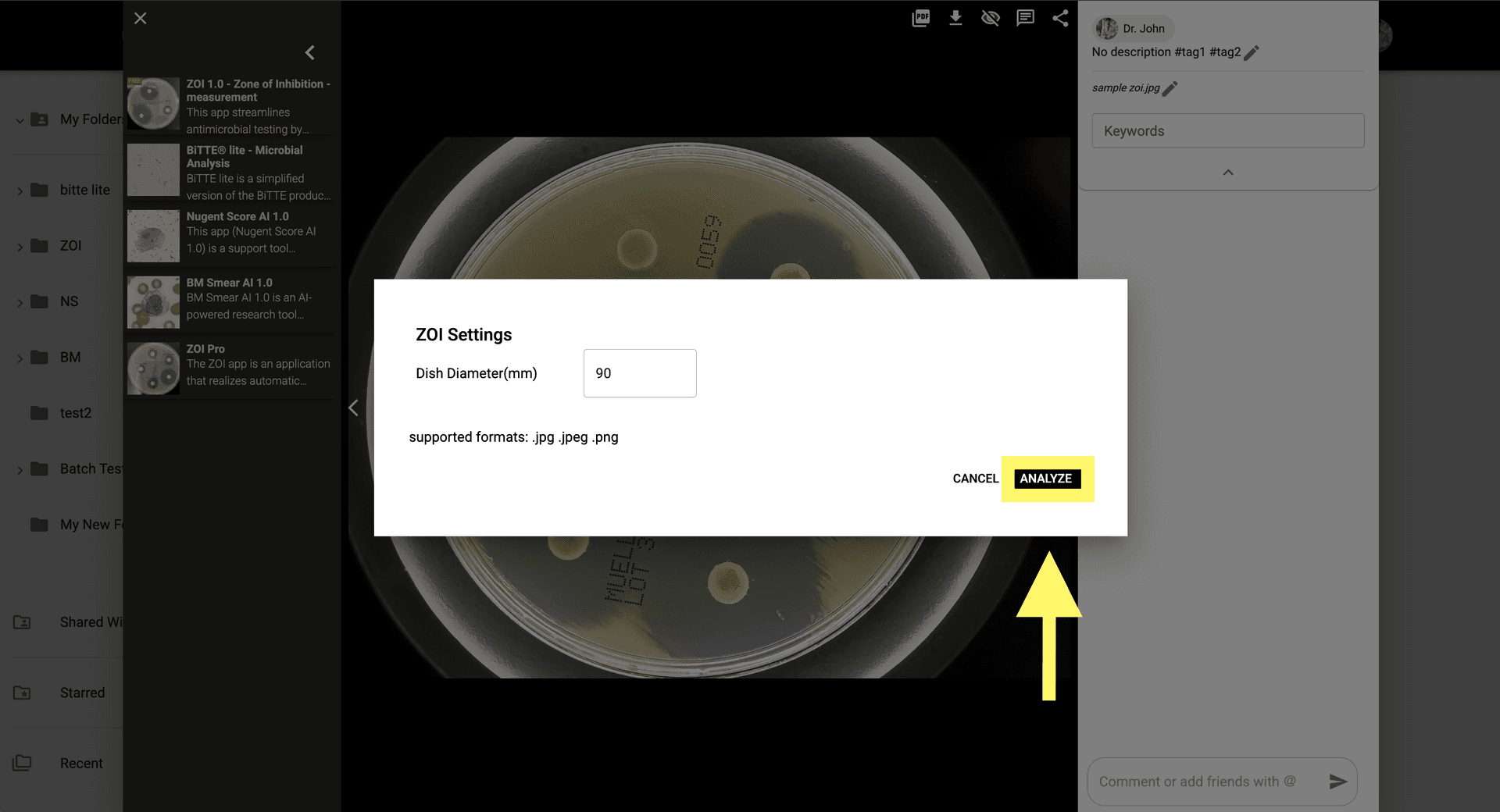
Step 4: Click 'Analyze' to run the analysis and measure the ZOI against different antibiotic discs.

View the results in the image modal by clicking the notification or opening the generated image from the gallery.
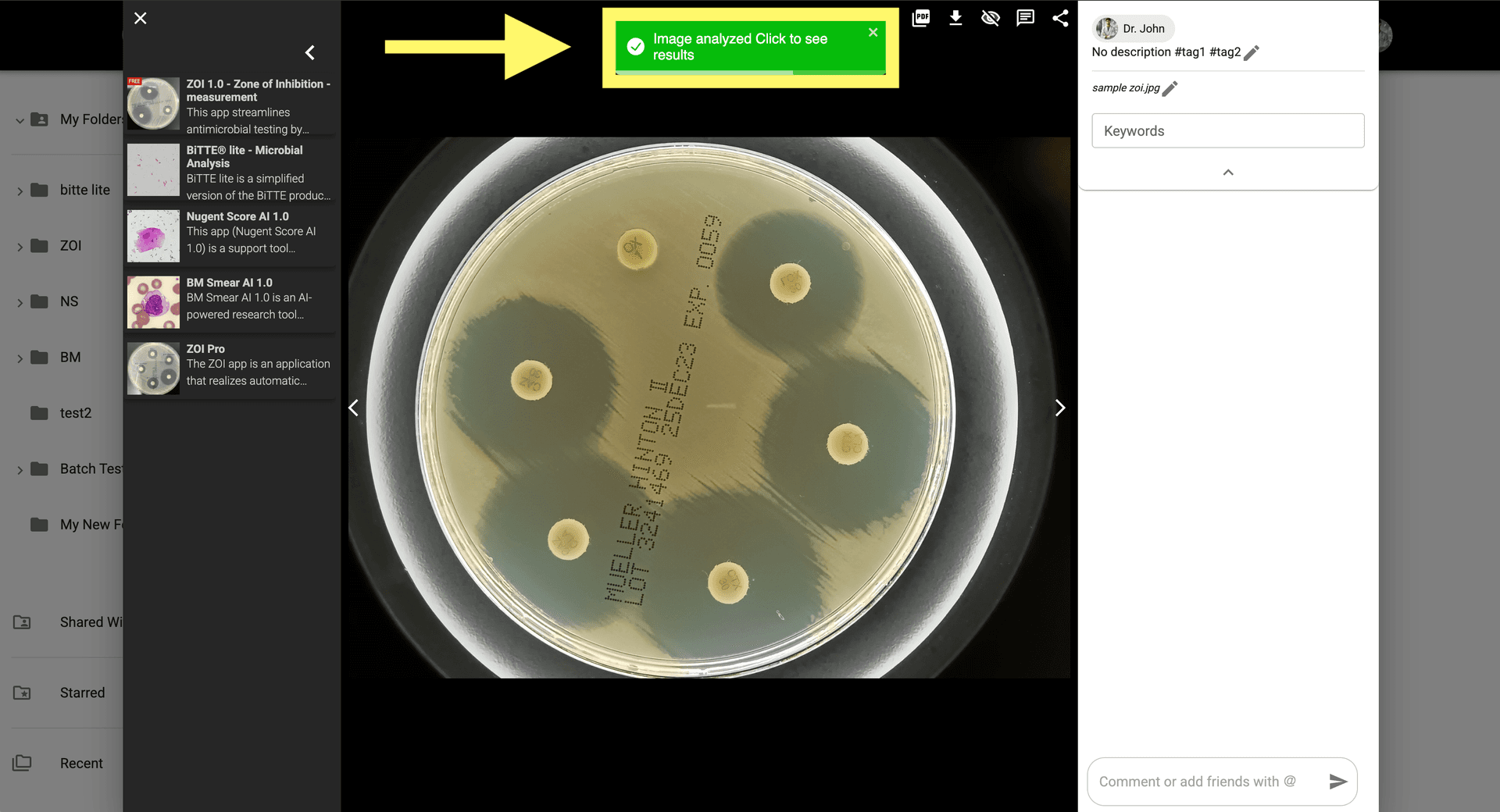
Step 5: View the results in the image modal by clicking the notification or opening the generated image from the gallery.

To adjust results manually, click 'Show AI correction' in the top-right of the image modal.
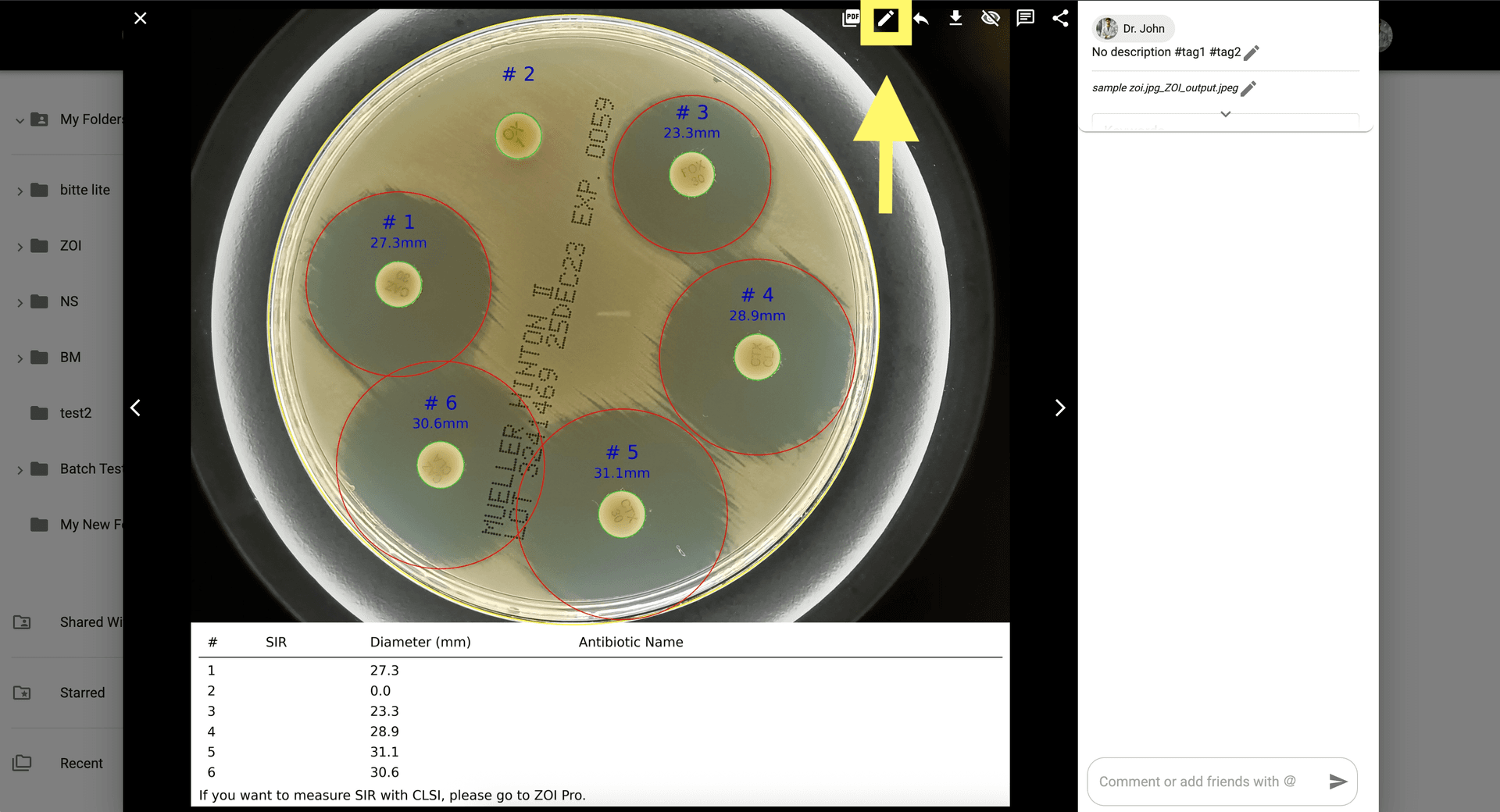
Step 6: To adjust results manually, click 'Show AI correction' in the top-right of the image modal.

Enable manual adjustments to refine the ZOI areas if needed.
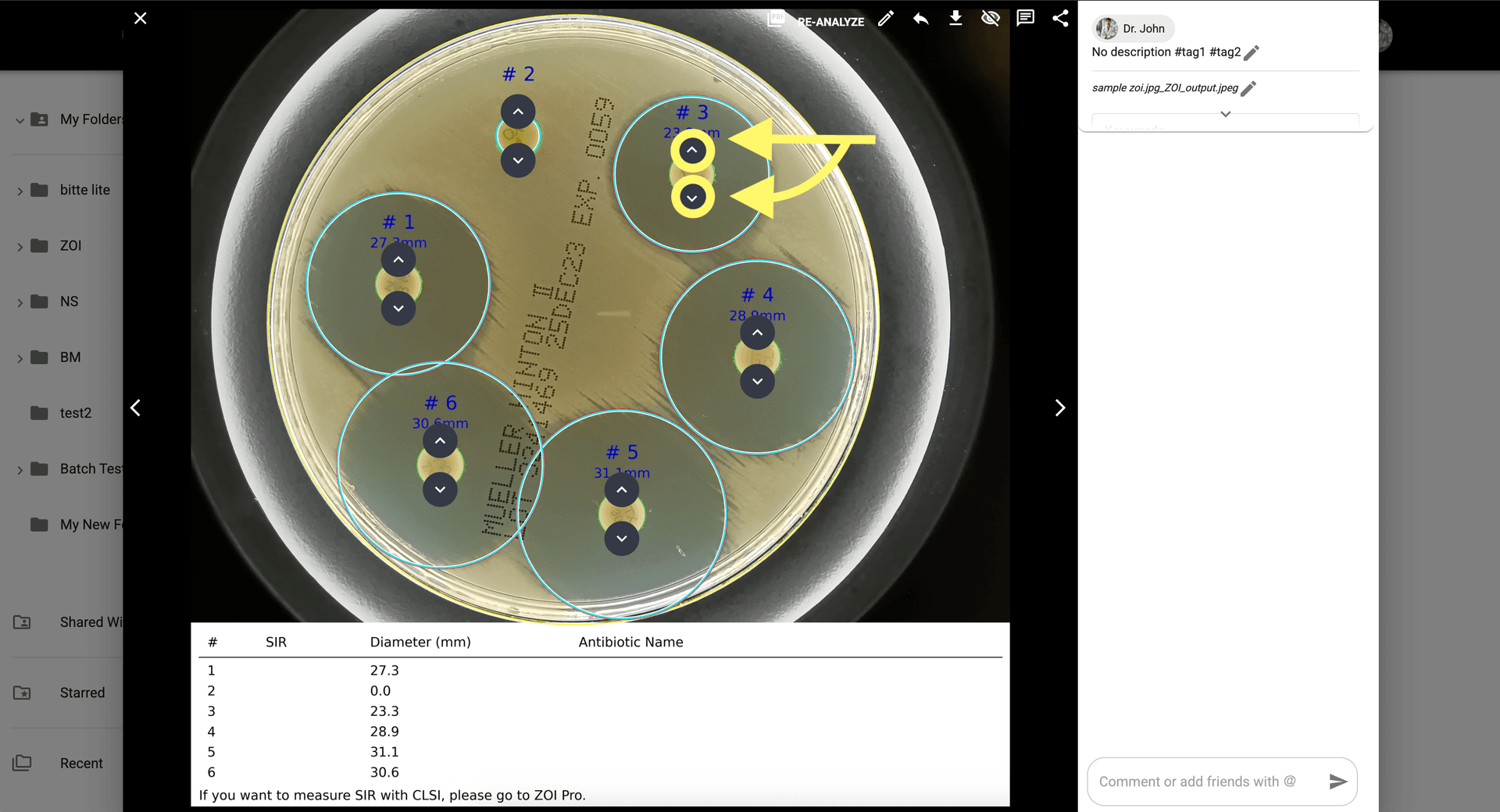
Step 7: Enable manual adjustments to refine the ZOI areas if needed.

When done, click 'Re-Analyze' to save your manual changes and finalize the measurement.
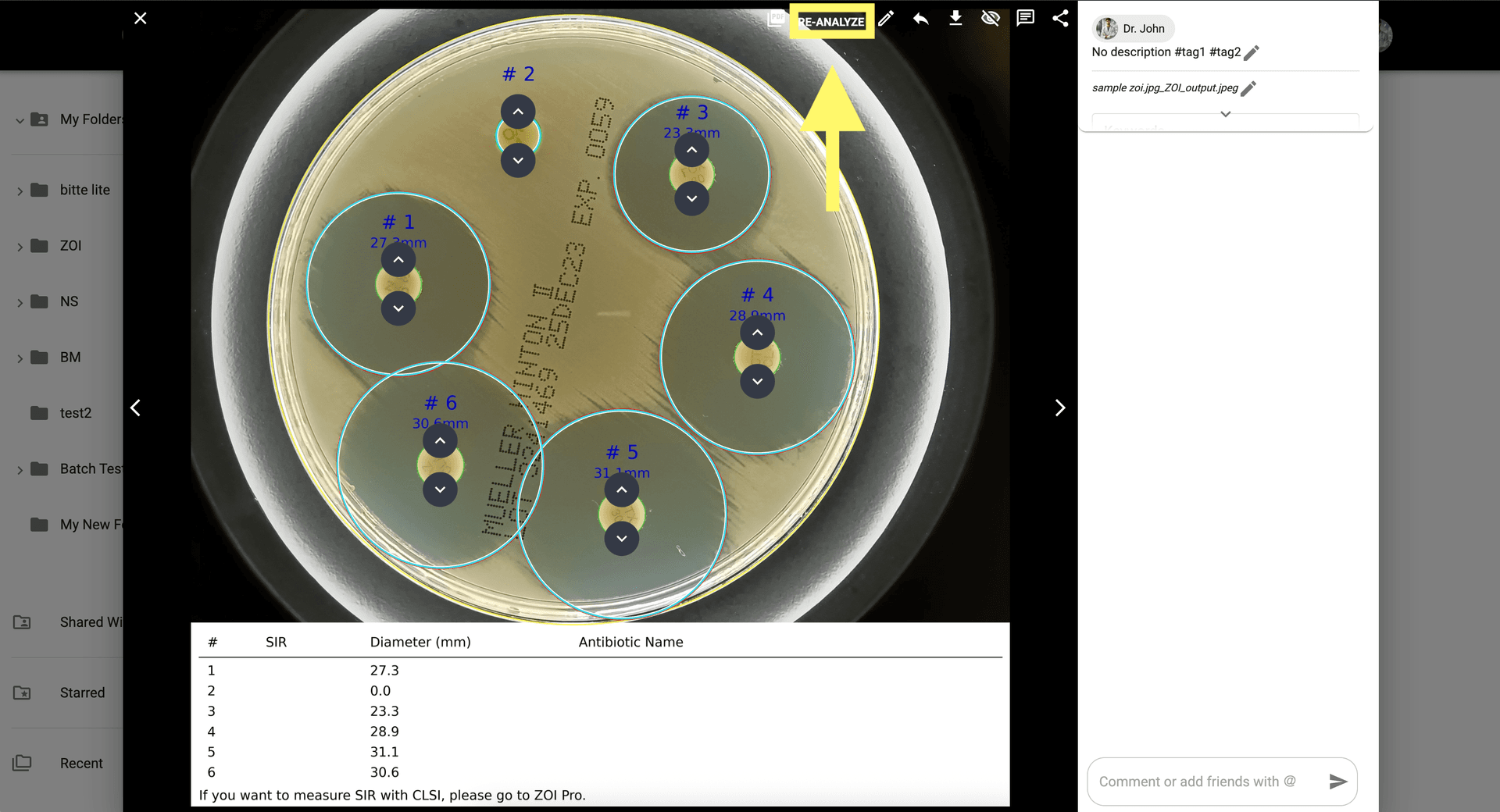
Step 8: When done, click 'Re-Analyze' to save your manual changes and finalize the measurement.
© CarbGeM Inc. All Rights Reserved.
About Us
Terms and Conditions
Privacy Policy